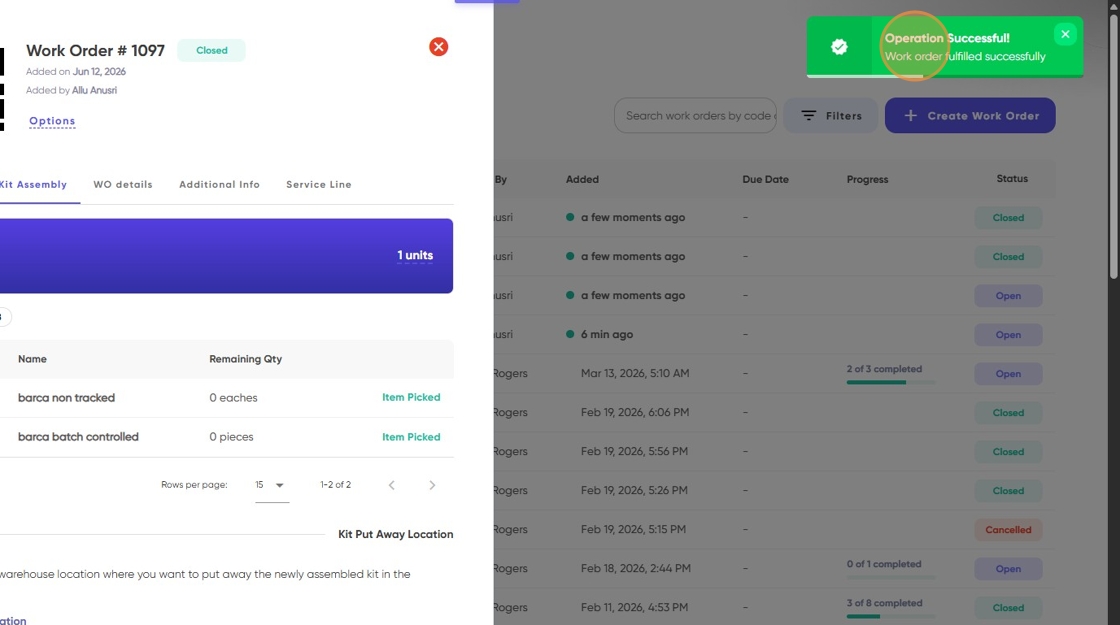
Central: How to create a work order for kit assembly
Last updated: June 12, 2026
This guide provides step-by-step instructions on how to assemble a kit from items in your inventory using the Central platform.
1. Go to your central dashboard and log in if necessary https://central.leanafywms.com/
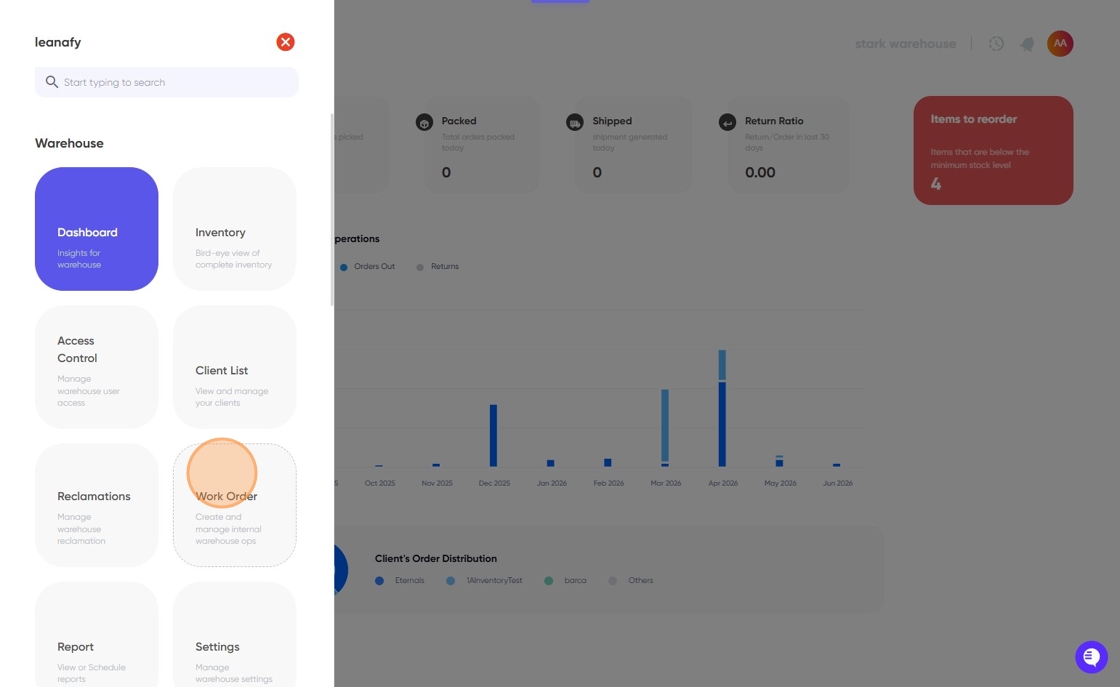
2. Open the menu and click on "Work Order" menu item
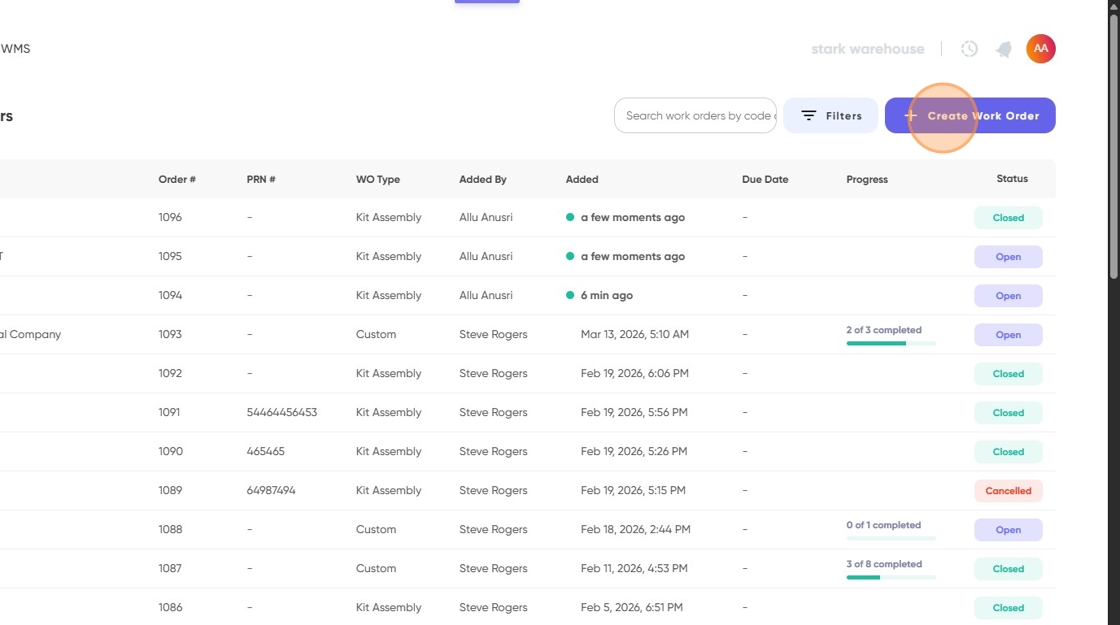
3. Click on "Create Work Order"
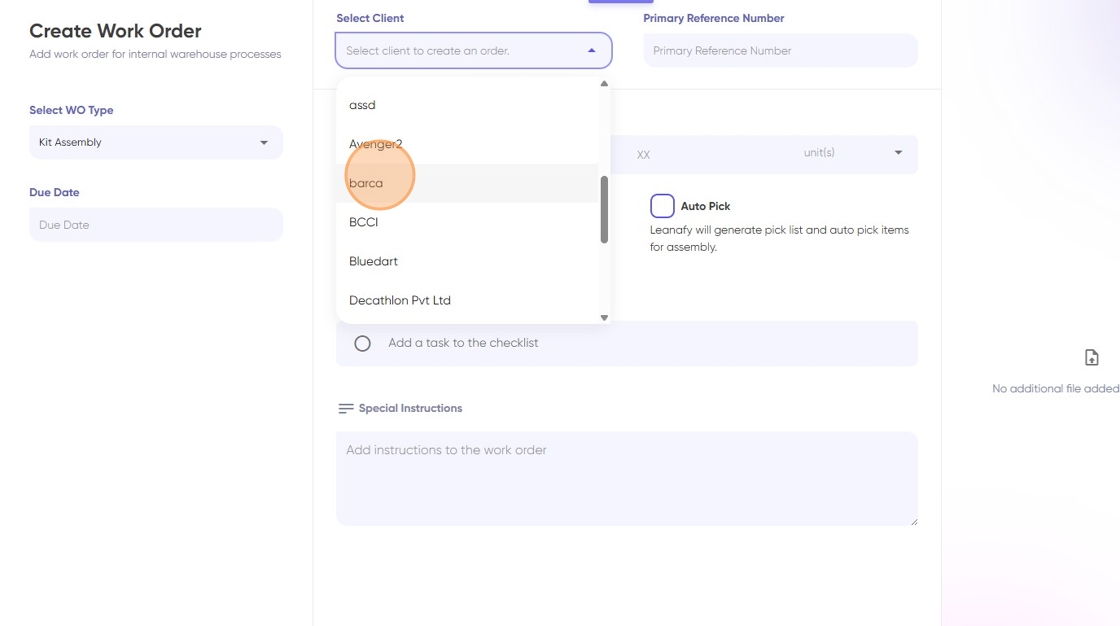
4. Click the "Select client" field and select a client you want to assemble kit for
5. Select the kit to assemble & enter the desired quantity of the kit you want to assemble
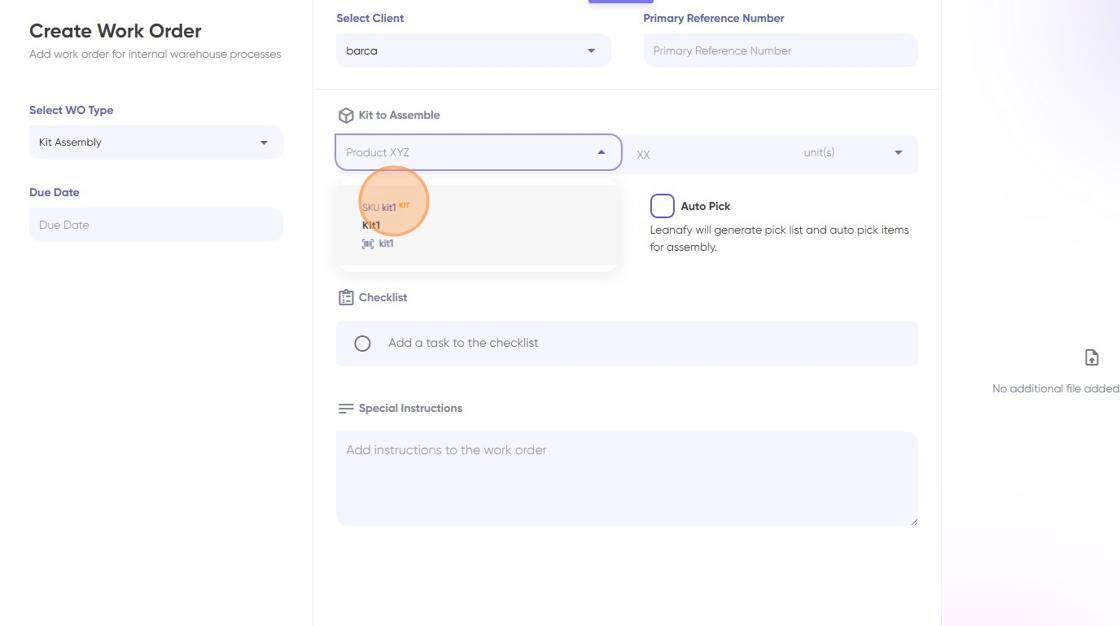
6. Choose "Auto Pick" if you would like skip the manual picking process required in Leanafy WMS
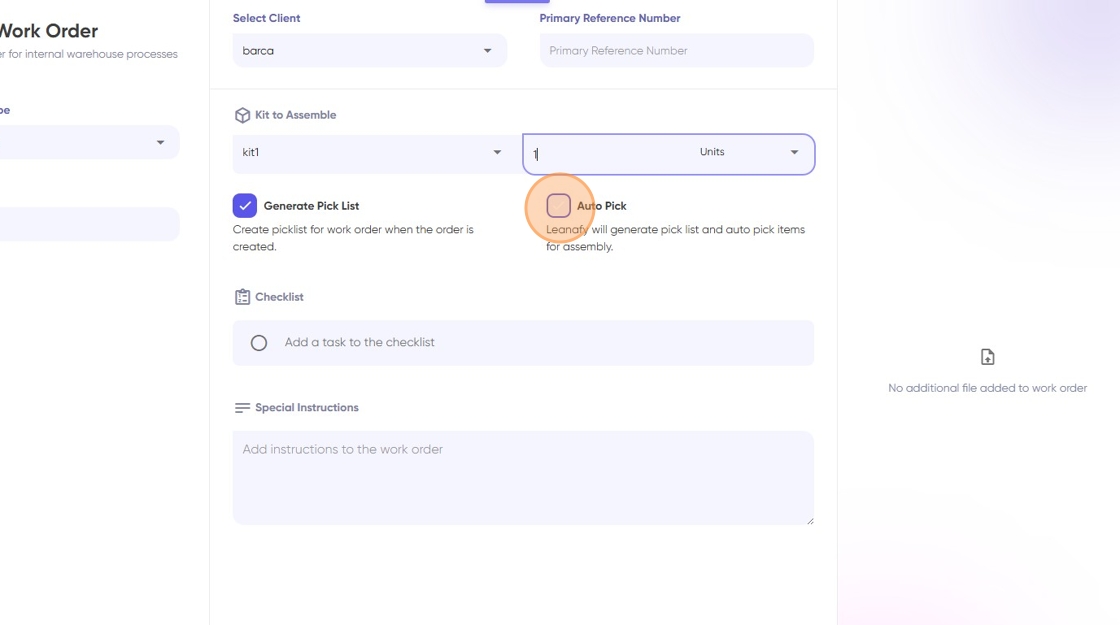
Alert: Please note that Generate pick list and auto pick options will only work if sufficient quantity of individual items of the kit is present in the inventory.
7. Click "Create Work Order"
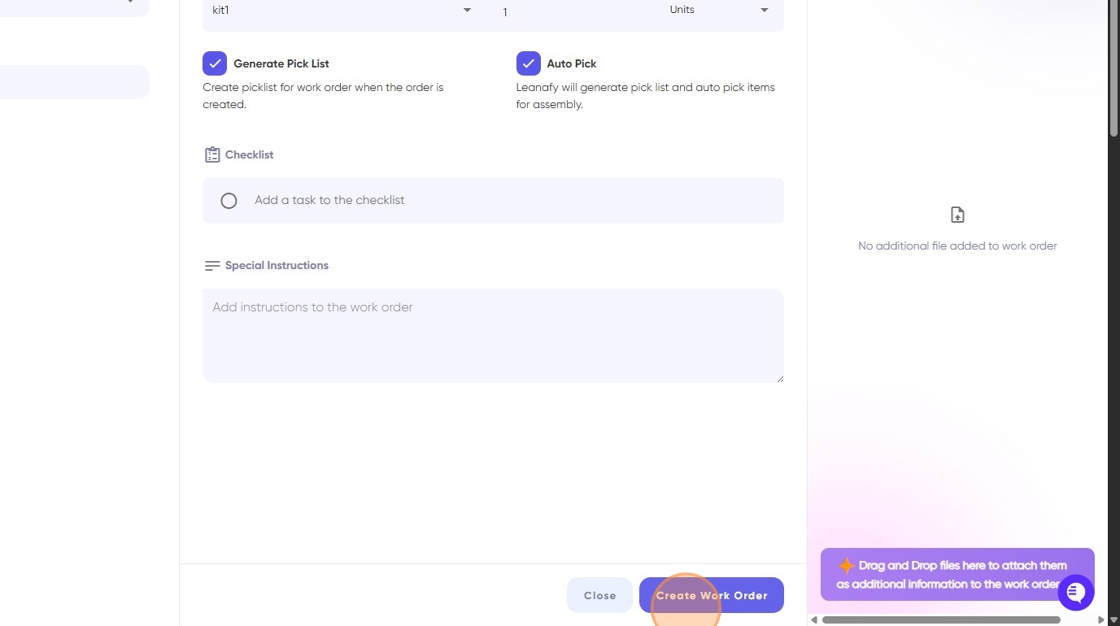
Tip: Once you click on create work order, work order will be generated and based on your selection pick list would have been generated as well. The system will automatically open the generated work order and you can start the assembly process.
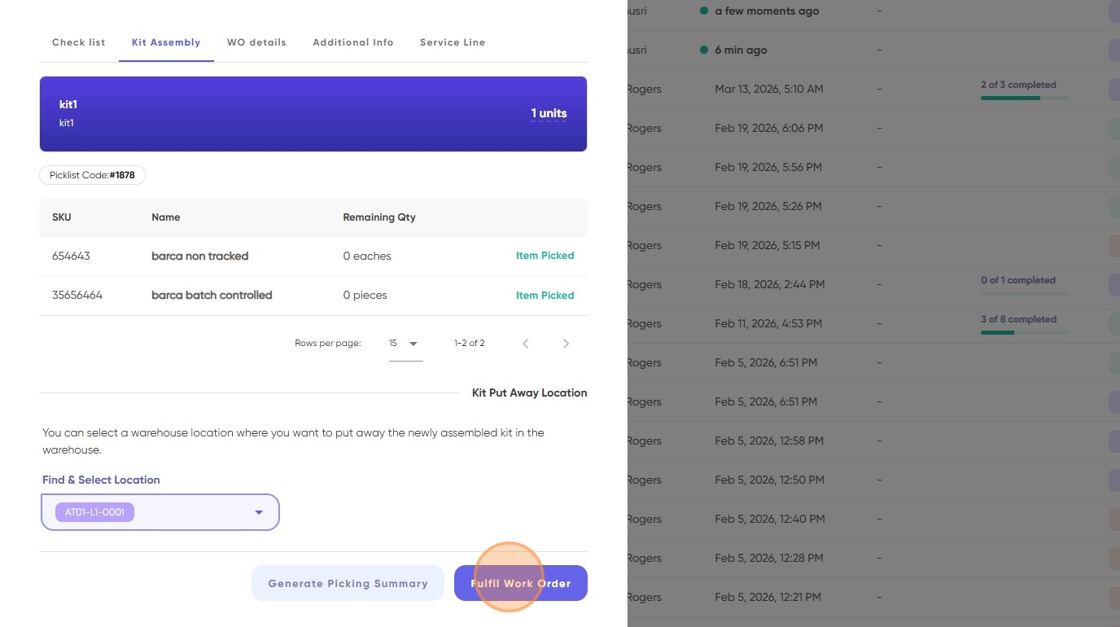
8. Finally search & select put away location for the newly assembled kit
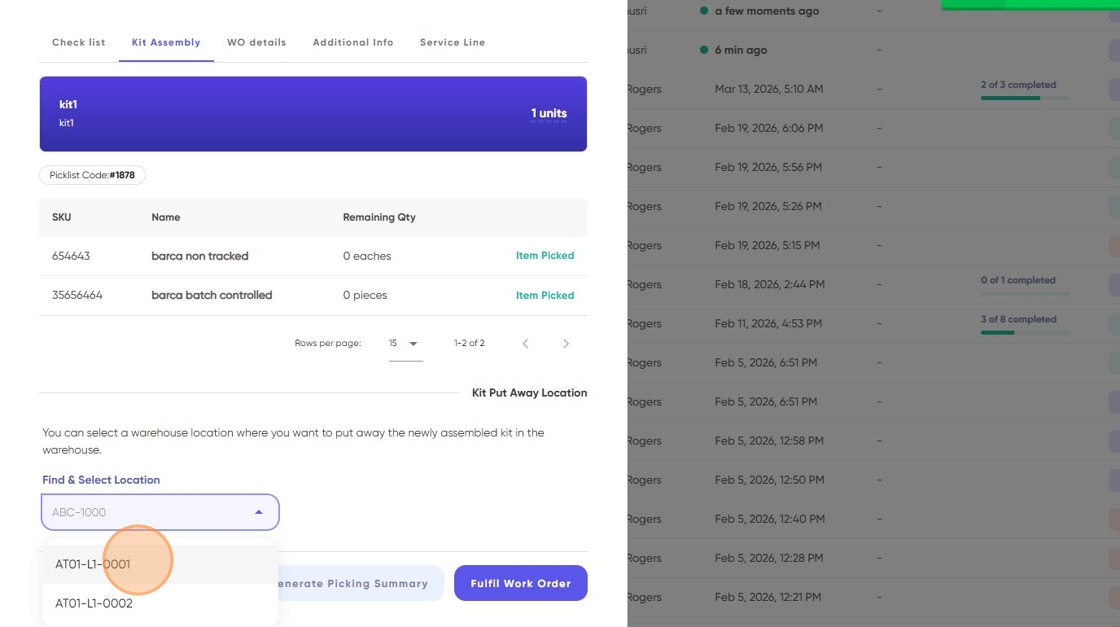
9. Click "Fulfil Work Order"
10. Work order fulfilled successfully