Central: How to update item information via CSV
Last updated: May 29, 2026
This guide provides step-by-step instructions on how to update item information via CSV on Central
1. Navigate to https://central.leanafywms.com/ and login if needed !
2. Click on Menu

3. Click on "Client List"

4. Click and select the client for whom you wish to update the item master.

Navigate to the Item Master tab and click on the "Download Item Master template" button if you don't already have the CSV format.

When updating item information in the Item Master, simply enter the product SKU and base unit, then fill in only the fields you want to update.
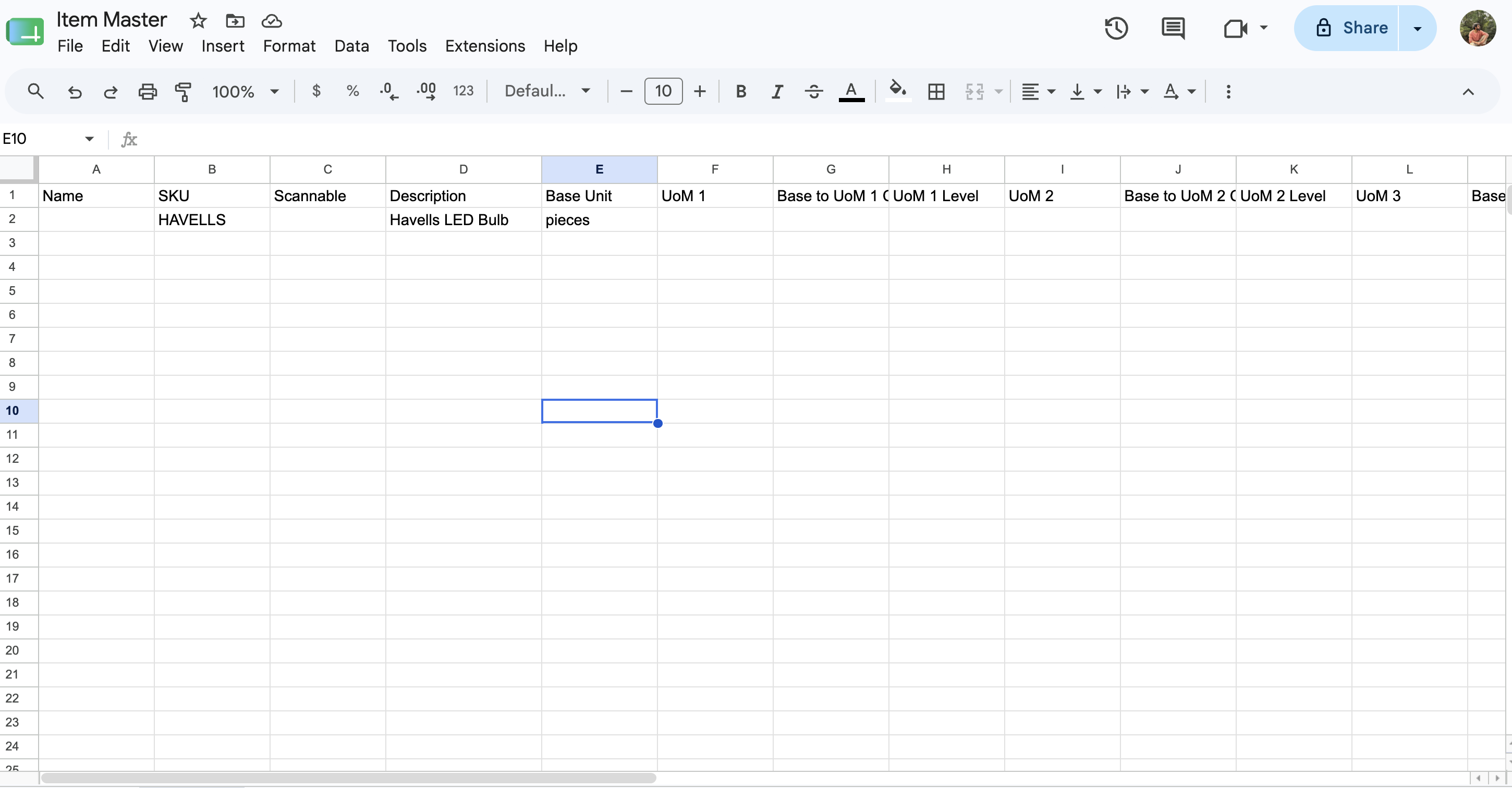
6. For example: Here information such as weight, HS tariff number, origin country, value, and currency is added, which will be updated for the respective SKU provided in the sheet.

Alert: Please use country and currency codes in capital letters for the country of origin and currency.
Alert: Tracking information, such as whether the product is batched, serial-controlled, or perishable, cannot be updated through the CSV.
7. Click on "Select a CSV file"

8. Click on the setting button

9. Select the 'Override' option

10. Click on "Upload Item master" button.

11. The item information has been updated successfully!
