Central: How to add item(s) in the item master via CSV
Last updated: June 18, 2026
This guide provides step-by-step instructions on how to add the item(s) to the item master via CSV.
1. Go to your central dashboard and log in if necessary https://central.leanafywms.com/
2. Click on Menu
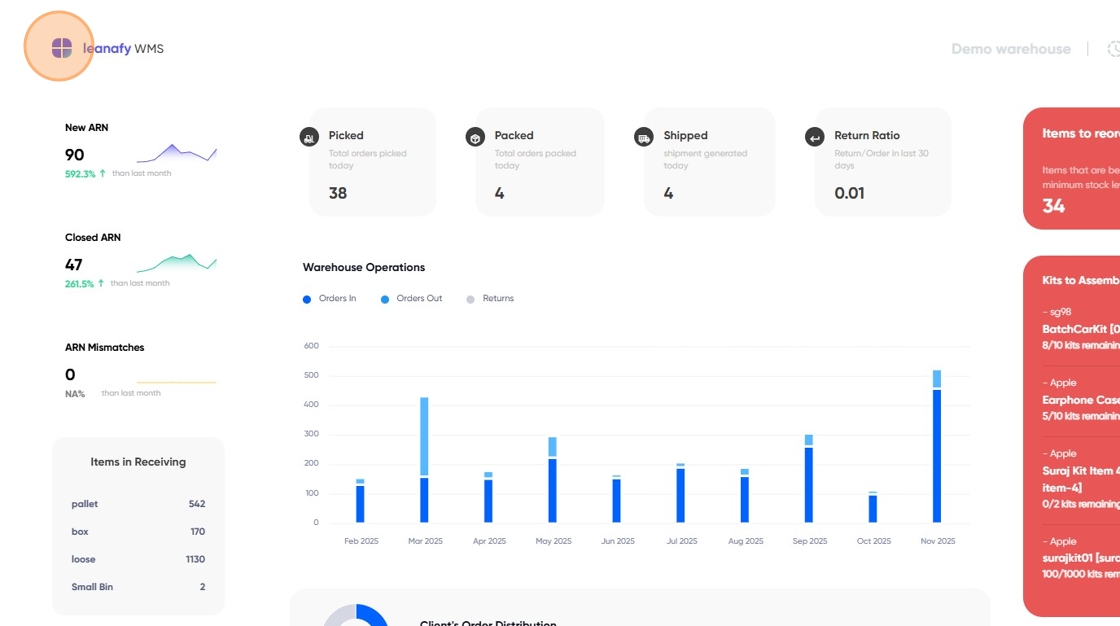
3. Click on the "Client List" from the menu items.
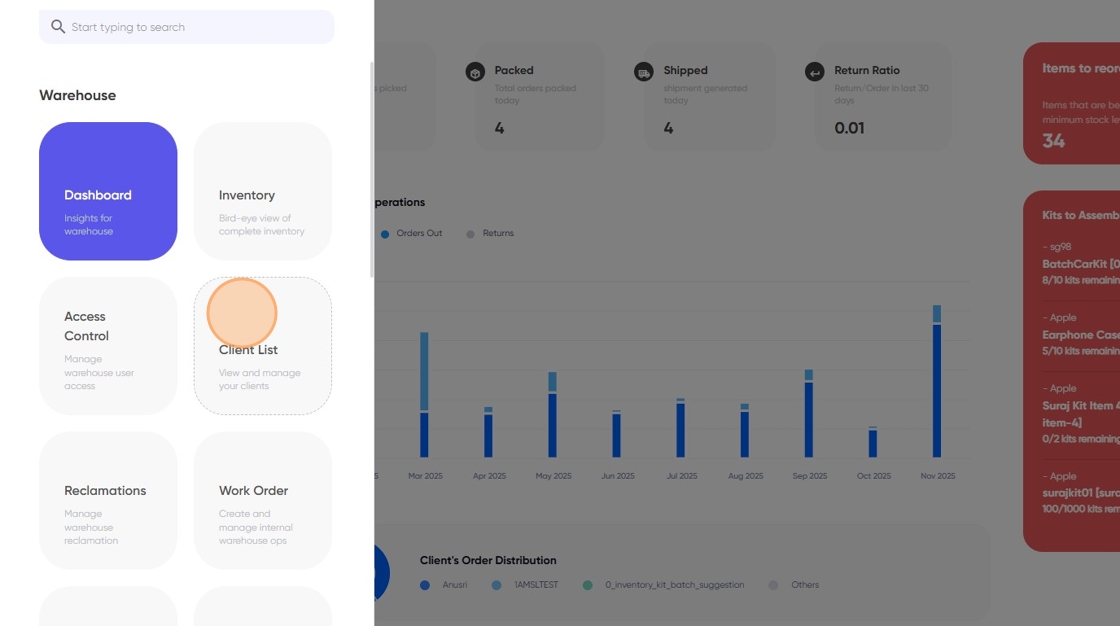
4. Select the client's name for which you wish to add the item(s).

5. Go to "Item Master"

6. Click on "Download Item master template"

7. Provide the necessary details for the item(s) in accordance with the respective columns within the sheet.


Tip: There are two ways to assign a UoM to an item in the item master template: either select a preexisting UoM (created in advance using the Central UI) or enter a custom name.
You can select the Base Unit directly from the dropdown list by clicking the arrow in the cell and choosing from the available UoM options (each, inner, case, pack, box, pallet, unit, piece). If you prefer, you can also type the unit manually or choose any other UoM as needed.

Tip: For the attributes Batch Control, Tracked by Serial Number, and Is Perishable, you should use the values 0 and 1, where 0 represents False and 1 represents True.
Tip: Based on the characteristics of the item, make a selection to indicate whether it is batch controlled, serial-controlled, or perishable. Note, that an item can be either batch or serial controlled, and if it is perishable, it will always be batch controlled.

Tip: For international shipments, it is mandatory to provide product details, including weight, HS tariff number, origin country (alpha-2 code only), amount, and currency.
Tip: If a product is hazardous material, you must select the appropriate hazmat classification. For example, you can select "Lithium" for battery products.
8. Now, proceed to click on "select a CSV file" to upload the item master file.

Alert: Only CSV file format is supported!
9. Now, click on the settings icon.

10. By default, the "Reject" option is selected, meaning duplicate items in the CSV will be rejected during the upload.

Tip: Using the "Override" option, you can update information for existing items in the Item Master.
Note: Tracking information cannot be updated.
11. Now, click the "Upload Item Master" button to effectively add the item(s) to the item master list.

12.Item master uploaded successfully.
